propeller

Senin, 10 Februari 2014

Photoshop CC - Camera Raw Filter

I've been playing with the new Photoshop CC version and exploring some of the new features since CS 6. Here is another feature that I wanted to share with you.
One of the new features in Photoshop CC is the Camera Raw filter.
If you've never worked with Camera Raw, here is a chance to start.
Camera Raw is now included under the filter menu.
Before, you had to use Lightroom or open an image that was in the raw format to access these tools. (What is a raw file or image?) Now, they are as handy as other filters available in Photoshop.
 Many of the tools in the Camera Raw filter will look familiar to you. However, there are many goodies here that if you've never used Camera Raw before, you'll love using.
One of these tools is the "Clarity" tool.
In the example below, I adjusted clarity to give more definition and contrast, increased vibrance and added a few more adjustments to my image. You can see the differnce from before on the left to my adjusted image on the right.

Where it really gets interesting is in the fact that if I convert my layer to a Smart Object (what is a Smart Object) I can use the Camera Raw filter as a nondestructive filter!
 
Additional Photoshop goodies with no harmed pixels. How great is that?

Jumat, 24 Januari 2014

New features in Photoshop

Want an easy way to quickly see what new features have been added to Photoshop?
I've just installed Photoshop CC and the jury is still out on this new "rental" agreement with Adobe as far as my opinion is concerned.
But I wanted to share with you how you can quickly see new features in the new Photshop CC. Now with the promise of automatic updates,  I'm not sure how this feature will work when the software does the updates automatically.
However, here is a way to see the the changes from CS 6 vs. CC for now.
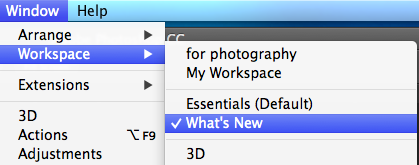
Go to "Windows" and select "Workspace".
Here you will find a "What's New" option.  Select this for now.
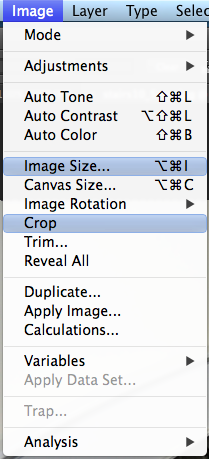
What happens is that Photoshop will highlight in blue any areas that have a change or have been added. You can quickly go from any dropdown menu and easily see if something has changed.
While there are no instructions on what has changed you can get into these areas and play around to see what is different.
For more detailed information about the changes you'll want to go directly to Adobe's site to see what all has changed.
http://blogs.adobe.com/photoshopdotcom/2013/06/getting-to-know-new-features-in-photoshop-cc.html

Later, after checking the new features out you'll probably want to turn this off by going back into Windows, Workspace and selecting "Essentials (Default).